Add shoppable video to any Shogun page.
Combine your Shogun layouts with Videowise shoppable video. Paste one snippet and the video shows up on the page, ready to sell.

How to add video to a Shogun page
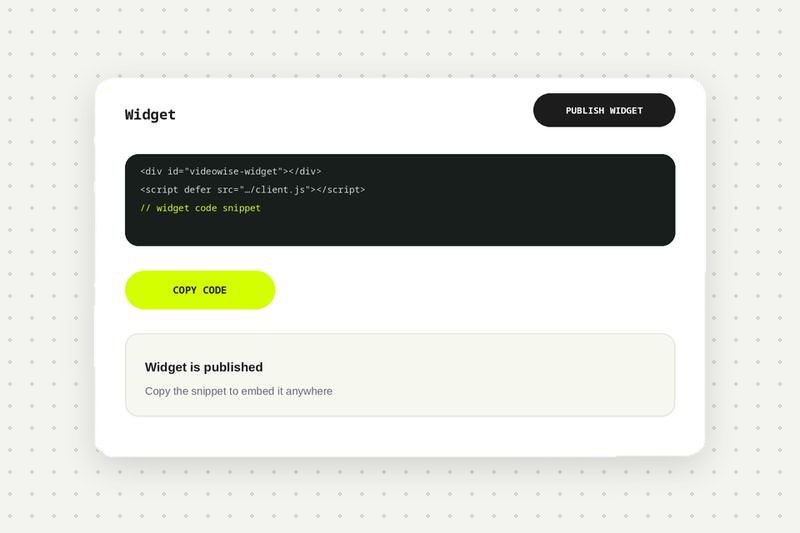
Create and publish a widget
In Videowise, create and publish the widget, then copy its code snippet. See the Shogun setup guide in the help center.
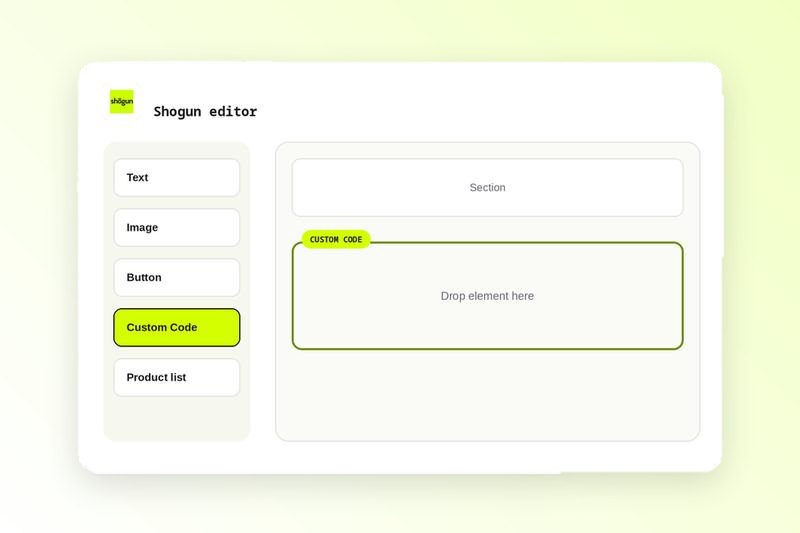
Add a Custom Code element in Shogun
Open the page in Shogun and add a Custom Code element where you want the video.
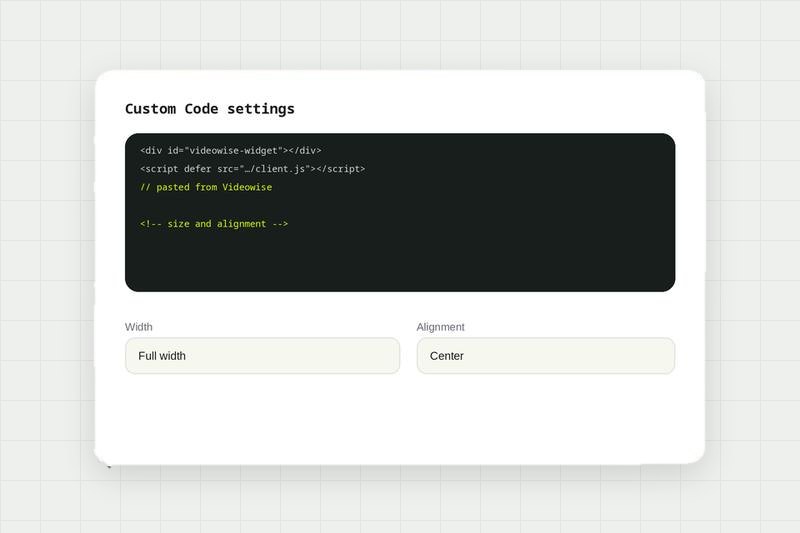
Paste the snippet
Paste the Videowise code and adjust size and placement in the layout.
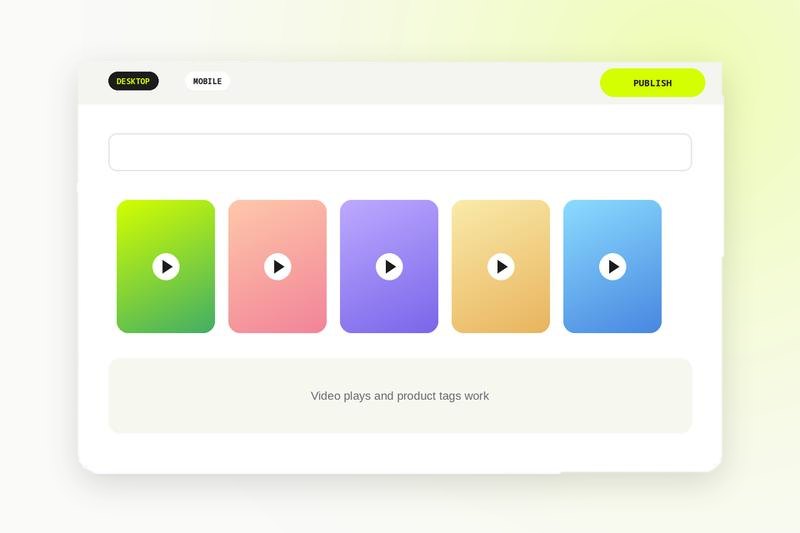
Preview and publish
Check desktop and mobile previews, make sure the video plays and product interactions work, then publish.
Add shoppable video to any page you build.
Compare every integration in this category, see what each one needs to connect, and read the shared FAQs.
Shogun integration FAQ
Create and publish a widget in Videowise, copy its code snippet, then paste it into a Custom Code element in Shogun where you want the video to show.
Yes. Videowise works with Shogun by pasting the video snippet into a custom code or HTML element, with no extra app needed.